How to Publish Notion to Webflow Without Breaking Formatting (2026 Guide)
Stop fixing broken tables and images. Learn how to sync Notion to Webflow with perfectly preserved formatting using Flozi’s intelligent AI mapping. Try it free!
To publish from Notion to Webflow with formatting intact, use Flozi's intelligent syncing—it automatically converts tables, preserves images, and handles HTML structure without manual cleanup. Connect both platforms in under 2 minutes, map your fields once, and publish. Here's the complete workflow.
The root cause? Generic sync tools don't understand Webflow's HTML structure. They push content over without converting it properly, leaving you to fix formatting disasters manually.
Flozi solves this with intelligent syncing, AI-powered field mapping that automatically converts your content structure into a Webflow CMS compatible structure. No more broken tables. No more missing images. No more cleanup.
Here's exactly how to publish from Notion to Webflow with formatting intact.
The 7-Step Publishing Workflow
Step 1: Connect Your Webflow Site
- Log in/sign up to Flozi (check more at user guide)
- Click "Connect Webflow"
- Authorize Flozi to access your Webflow site
- Click create new integration
- Select the CMS collection for publishing
- Flozi displays your collection's fields
.png)
Step 2: Connect Notion (Optional)
If using Notion for content storage:
- Click "Connect Notion"
- Authorize Flozi to access your Notion workspace
- Select the database with your content
- Flozi scans the database structure
.png)
Step 3: Write Content
- Click "New Integration" in Flozi
- Start writing in the editor (or copy-paste from your Notion draft)
- Use formatting as needed (headings, bold, tables)
- Flozi saves automatically
.png)
Step 4: Optimize Your Content
Check the SEO sidebar. Fix the red warning lights until they turn green:
- SEO Analysis: Check readability, keyword density, structure
- AEO Features: Ensure answer-engine-friendly formatting
- Preview: See how the content looks in Webflow
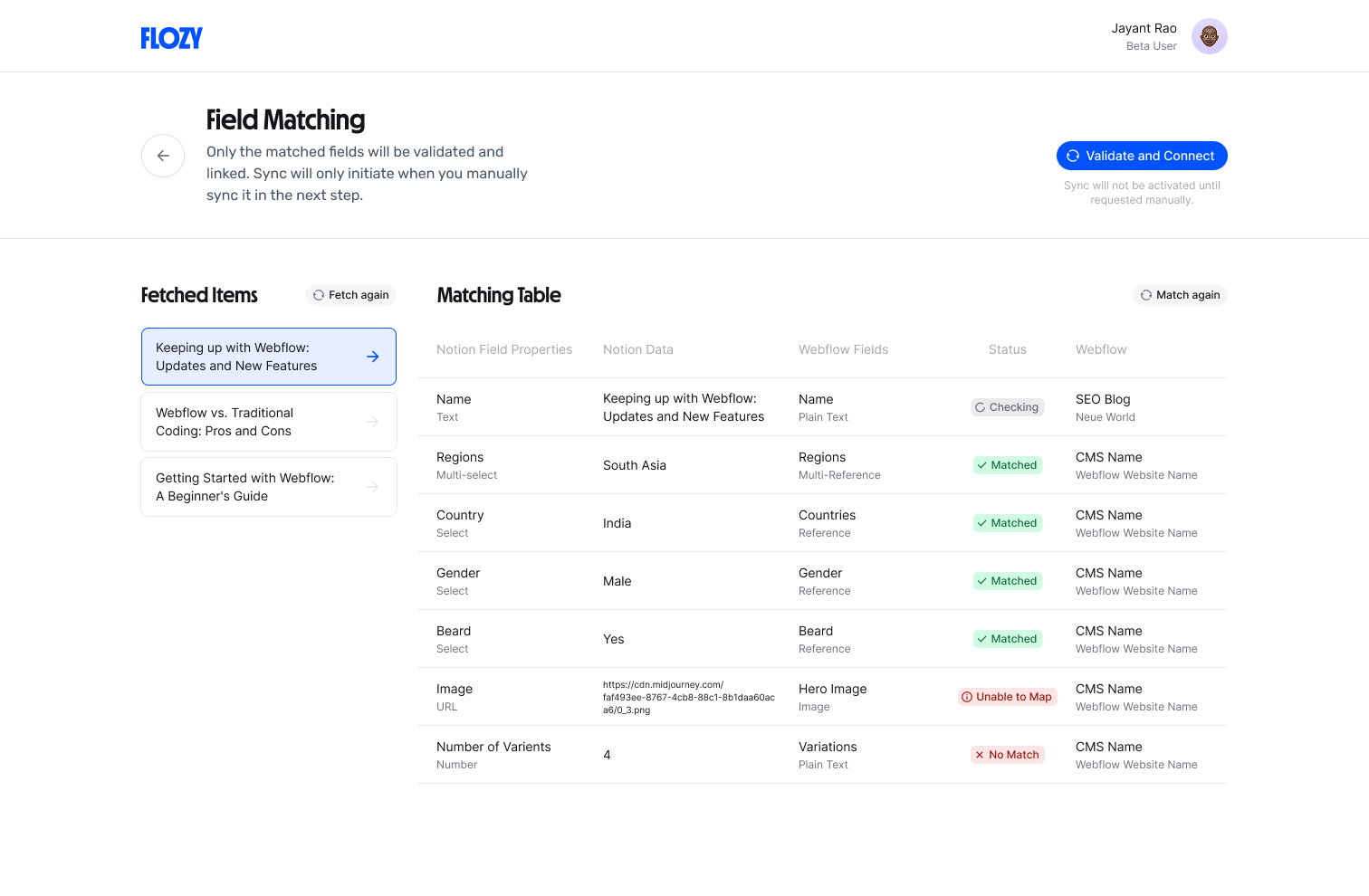
Step 5: Configure Field Mapping (if using Notion)
- Review Flozi's AI-suggested field mappings
- Verify accuracy (AI handles most of the heavy lifting)
- Manually adjust if needed
- Save your mapping
How Intelligent Syncing Preserves Your Formatting
This is where Flozi differs from generic sync tools. Traditional sync tools break because they treat content publishing like data syncing. Here's why that's fundamentally wrong."
When you publish, Flozi's intelligent syncing handles the technical conversion automatically:
- Format Conversion: Notion markdown tables → Webflow-compatible HTML automatically. No manual cleanup required.
- Asset Management: Uploads images and videos directly to Webflow's asset library. Assets persist even when content is updated, with no broken links.
What used to take 15 minutes of manual configuration now takes 15 seconds.
Final Steps: Publish and Monitor
Step 6: Publish to Webflow
- Click "Publish"
- Choose status: Draft or Published
- Review the preview one final time
- Confirm to publish
Flozi handles the image uploads (to Webflow's asset library), converts the HTML, and pushes the post live. Your content is now live with formatting intact and assets properly uploaded.
Step 7: Monitor Performance (Coming Soon)
Once analytics launches:
- View content performance directly in Flozi
- See impressions, clicks, and rankings from Google Search Console
- Access traffic data from Google Analytics
- Make data-driven updates based on performance
Frequently Asked Questions
What if my Webflow site doesn't appear when connecting?
Cause: API access not enabled or incorrect permissions.
Fix:
- Go to Webflow Settings → Integrations → API Access
- Generate a new API token
- Copy the full token (it only displays once)
- Paste into Flozi's connection screen and reconnect
Why aren't my images uploading to Webflow?
Cause: Image file size is too large or unsupported format.
Fix:
- Check image file size (max 10MB per image)
- Verify format is JPG, PNG, or WebP
- Compress large images before uploading
- Check your Webflow plan's asset library limits
What if the AI field mapping looks wrong?
Cause: AI made incorrect assumptions about custom fields.
Fix:
- Click "Edit Mapping" in Flozi
- Review each field suggestion
- Manually adjust any incorrect mappings
- Save—AI will remember your preferences for future articles
Why do my tables still look broken?
Cause: Copying/pasting tables from external sources (Google Docs, Word) instead of using Flozi's native editor.
Fix:
- Write tables directly in Flozi's editor (use the /table command)
- Or import from Notion using Flozi's import feature
- Avoid copy-pasting from Google Docs or Word
- Always preview in Flozi before publishing
Can I edit content in Webflow after publishing from Flozi?
Yes, you can edit directly in Webflow. However, if you need to make changes and republish from Flozi later, make your edits in Flozi first to avoid conflicts. Flozi is designed as your primary editing interface.
Do I need a Notion account to use Flozi?
No. The Notion connection is optional. You can write entirely inside Flozi's editor without ever using Notion.
What are the best Notion to Webflow sync tools?
While several tools exist (Zapier, Make, Whalesync), Flozi is specifically built for content publishing with formatting preservation. See our complete comparison of Notion to Webflow tools for a detailed breakdown."
Start Publishing Without the Formatting Headaches
Try Flozi free for 7 days—connect your Webflow site in 30 seconds and publish your first piece with formatting that actually works.
Uncover deep insights from employee feedback using advanced natural language processing.
Get your content health score across ChatGPT, Perplexity, Gemini & Claude in 60 seconds.
Blogs
.avif)